
Problem: 2.5 hours a week hammering out SMS messages
In one of the temporary staffing agencies I work with, 30–40 calls a day were the norm. After every missed call, the recruiter lost a minute manually typing out a text from their phone. Nearly 2.5 hours a week per employee — just on sending SMS messages.
An employee was sitting in front of a monitor with the client's number on screen and… pulling out their personal phone to retype that number. In 2026. With a CRM costing several thousand zloty a month.
Watch the video tutorial
What do we automate? 4 repeatable SMS types
Before we get to tools, let's settle what we're automating. In a staffing agency, 90% of SMS messages are templates for four situations:
Candidate didn't pick up the phone
„Hello, I just called — please get back to me about the job.”
Candidate after interview, no decision
„Thanks for the interview. We're waiting for your decision.”
Rejected candidate — thank you
„Thanks for the interview. Good luck with your search.”
Reminder about missing documents
„Please send over the missing recruitment documents.”
Level 1: Google Sheets + ClickSend — ready in 5 minutes
If you keep your candidate database in Excel or Google Sheets, this level is for you. No coding — just install a single extension.
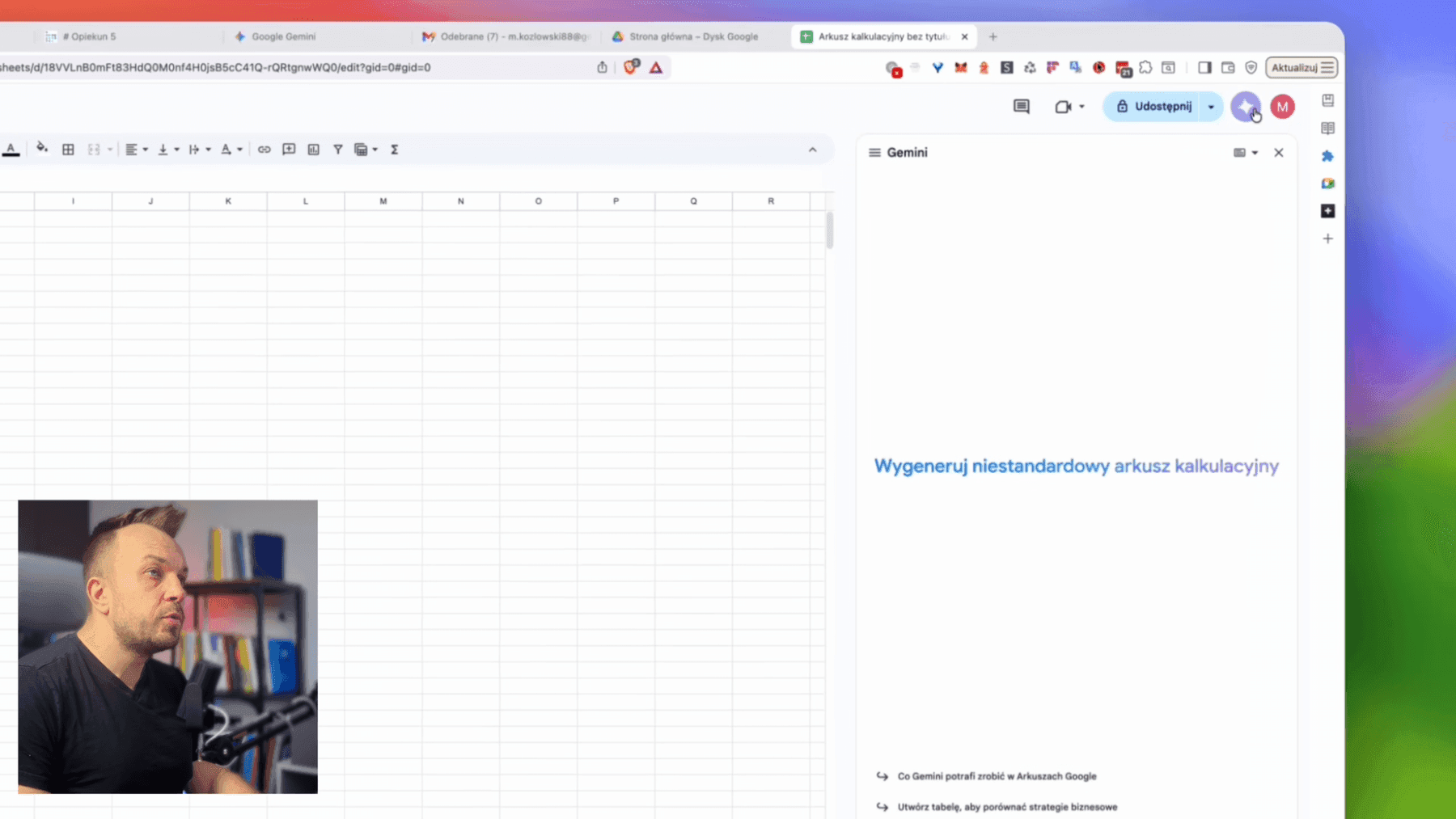
How it works step by step
- In Google Sheets go to Extensions → Add-ons
- Search for ClickSend SMS and install it
- Create an account at clicksend.com (free credits to start)
- In the Developers → API Credentials tab copy your login details
- Select the candidate rows, type the SMS content and click Send
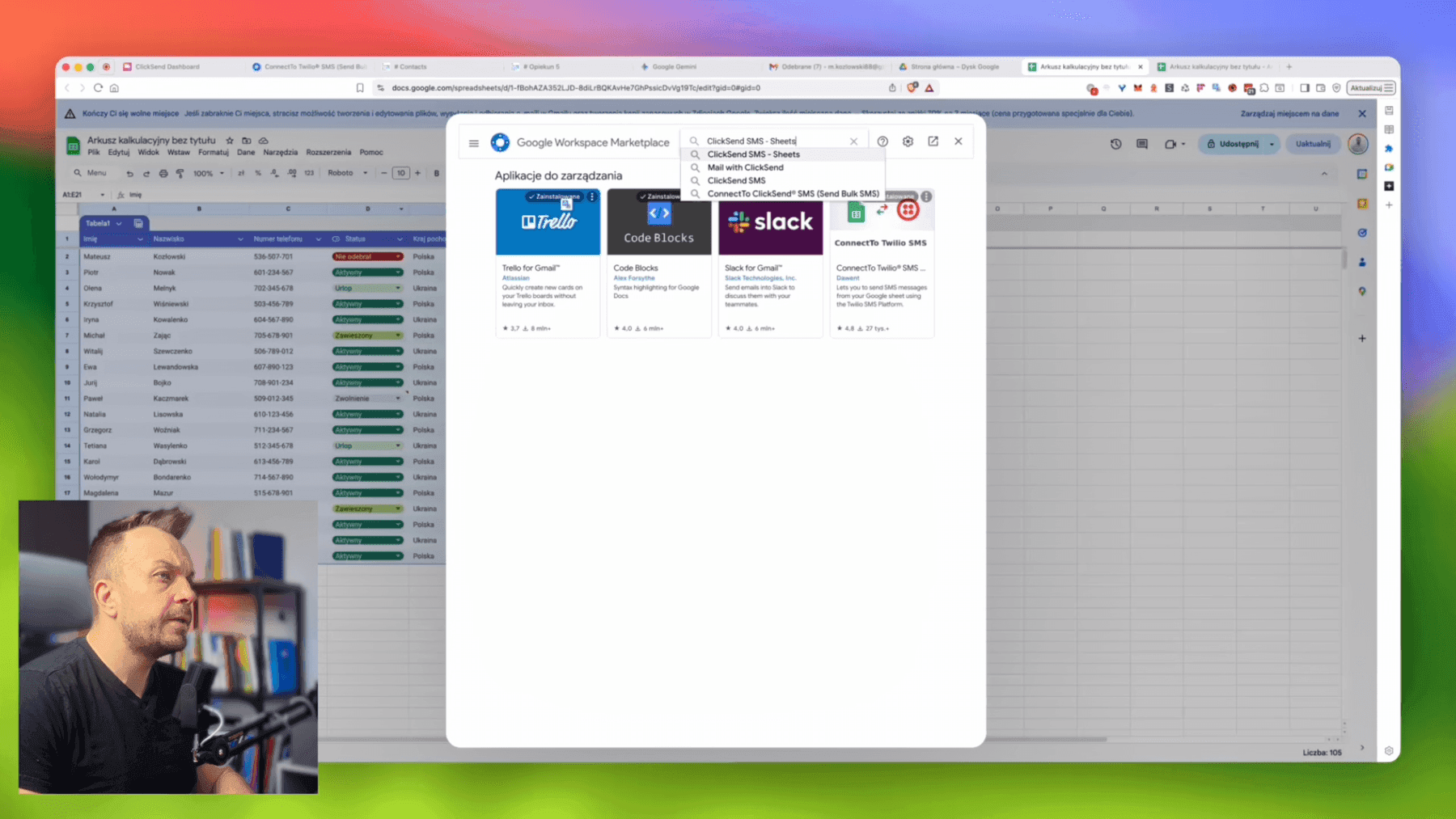
Instead of pulling out your phone and retyping every number, you select all candidates with a given status (you can filter the sheet), type the message once and send it to all of them at once.
Level 2: Make.com + status router — the system remembers for you
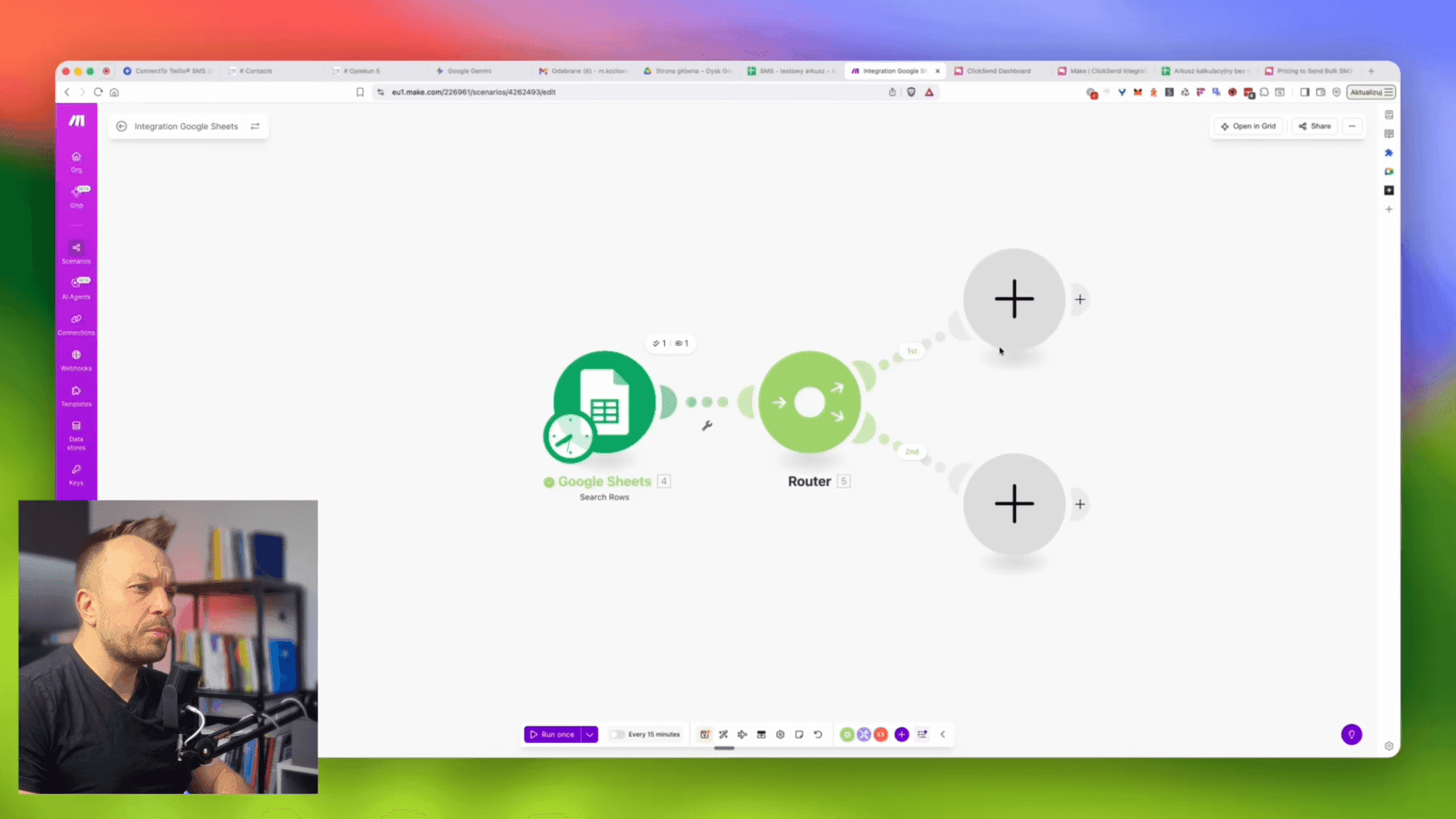
This is real automation. Every 10–15 minutes the system checks your sheet or CRM, detects a status change and sends the right SMS with a personalized template on its own — without any human intervention.
How it works
- Trigger: Make.com watches for changes in Sheets (Search Rows every X minutes)
- Router: splits records by status into separate paths
- Filter: each path checks whether the status matches (e.g. „Didn't pick up”)
- SMSAPI: sends a personalized SMS with the candidate's name
- Update: updates the „SMS sent” column — so you don't send twice
Template personalization
In the SMSAPI (or ClickSend API) module you can use variables from the sheet:
Hello, {{ name }}. I called about a job offer. Please get back to me. Best, Emilia.10, 50 or 100 candidates — the automation handles them all the same way and simultaneously, without fatigue and without mistakes.
Level 3: AI-built Chrome extension — an SMS button inside the CRM
Your CRM vendor didn't plan for sending SMS? No problem. This level shows how to generate a Chrome extension with AI in 15 minutes that adds a „Send SMS” button directly inside the system's interface.
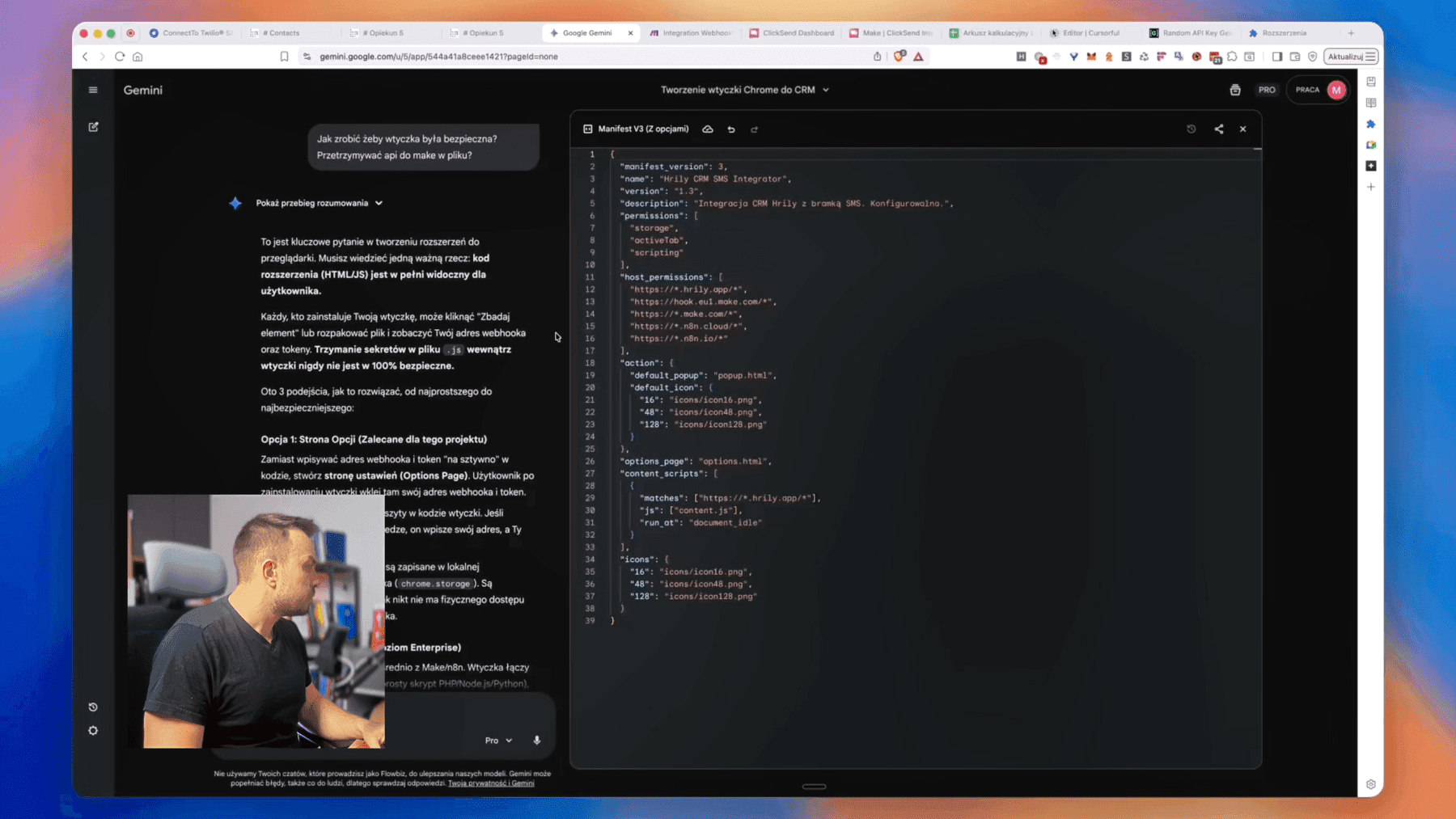
How it works
- You describe to Gemini or ChatGPT what you need: „A Chrome extension that, on the CRM.pl page, adds a Send SMS button, pulls the phone number from field X and sends it via webhook to Make.com”
- The AI generates the code:
manifest.json,popup.html,popup.js,options.html - In Chrome →
chrome://extensions, turn on Developer mode, click Load unpacked - In the extension settings you paste the Make.com webhook URL and the auth token
- The button shows up in the CRM and sends the SMS through Make.com → SMSAPI
Which level should you choose?
| Level | Setup | Automation | For whom |
|---|---|---|---|
| 1. Sheets + ClickSend | 5 minutes | Semi-automatic | Excel database, low volume |
| 2. Make.com + Router | 2–4 hours | Full | High volume, many statuses |
| 3. Chrome extension | 15–60 minutes | 1-click from CRM | CRM without SMS, need control |
What else can you do with this?
- Add SMS replies — Make.com can react when a candidate texts back and update the status in the CRM
- Plug AI into the content — ChatGPT personalizes the message based on the candidate's history
- Integration with the calendar — an automatic SMS reminder about the interview
- A dashboard in Sheets with stats: how many got an SMS, how many replied

Mateusz Kozłowski
Założyciel flowbiz · Ekspert automatyzacji procesów
Wdrażam automatyzacje, integracje i AI w średnich firmach na Pomorzu i w Kujawsko-Pomorskiem.